
1. Choose Your Software Update Preference
- Log into your Microclimates site.
- From the left-hand menu, click on Settings.
- Select software updates.
- Under update preferences, choose either Standard or Advanced.
- Standard Updates: These are stable versions that have been in use for 30+ days. This option is recommended for most users who prioritize reliability.
- Advanced Updates: These versions are newer and may include the latest features or integrations. They are best suited for users working with Microclimates on new integrations or those who want early access to updates.
- After making your selection, be sure to click save at the bottom of the settings menu.
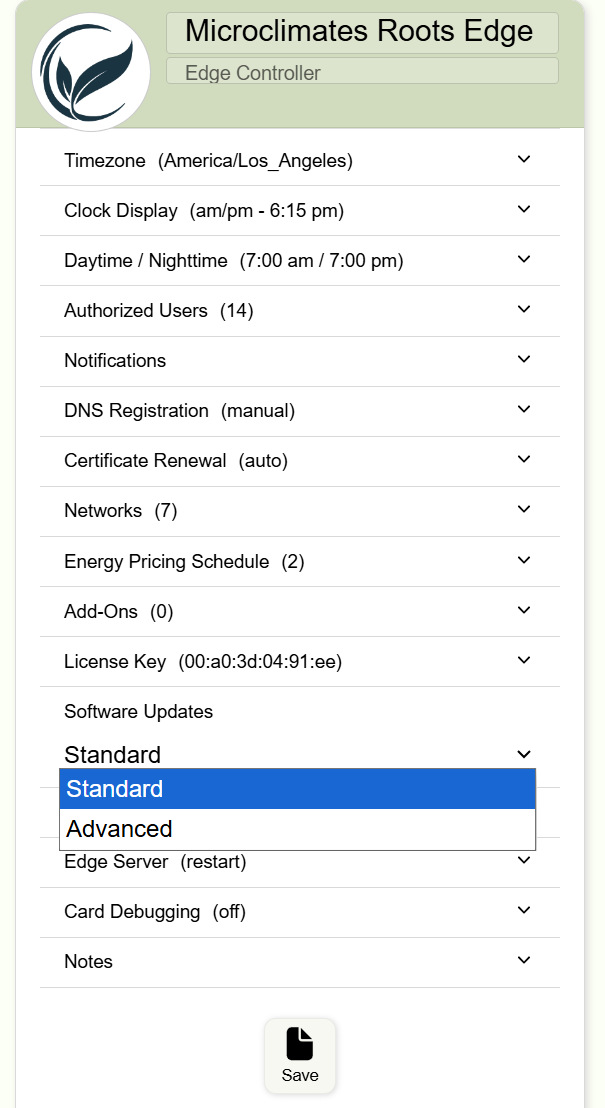
⚠️ Your preference will not change unless you click Save.
2. Update to the Latest Software Version
- From the left-hand menu, click on Settings.
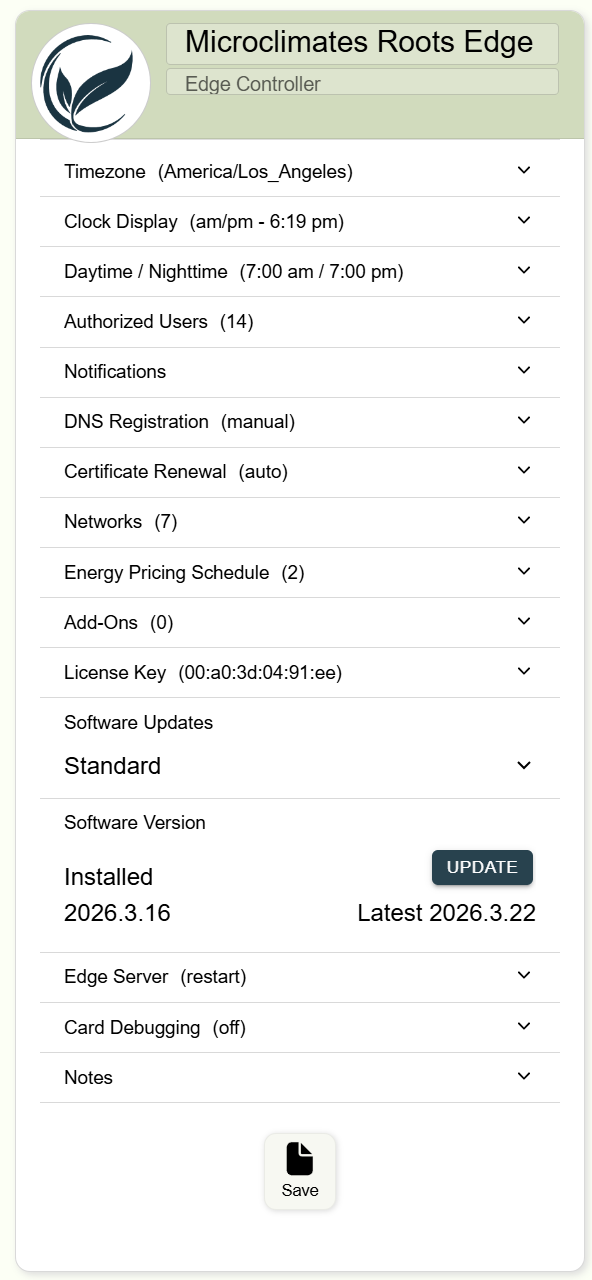
- click on Software Version.
-
Click “Check Latest”.
- The left side shows your current version.
- The right side shows the latest available version.
-
If a newer version is available, proceed with the update.
⏱️ The update process typically takes about 30–60 seconds. - Once complete, click Save at the bottom.
During or shortly after the update, the HMI may temporarily display unexpected or unusual behavior. If you notice anything out of the ordinary, please refresh your screen.