At Microclimates, the security of your data is our top priority. To provide an extra layer of protection for your account, we support Two-Factor Authentication (2FA).
What is Two-Factor Authentication?
Two-factor authentication adds a second step to your login process. Instead of just entering your password, you will also be asked to provide a dynamic 6-digit code generated by an app on your smartphone.
This ensures that even if someone discovers your password, they cannot access your account without physical possession of your mobile device.Two-factor authentication (2FA) is a security measure that helps prevent unauthorized access to user accounts.
Practically, 2FA means storing a secret in an authenticator, usually on a mobile phone, and exchanging a code from the authenticator when logging in.
This means an unauthorized user would need to guess the account password and have access to the authenticator, which is a more difficult proposition.
Some governments, such as the Australian government, require 2FA. For these fiscal localizations, it is not possible to deactivate 2FA.
Requirements
Phone-based authenticators are the easiest and most commonly used. Examples include:
Password managers are another option. Common examples include:
These lists are just examples. They are not endorsements of any specific software.
The remainder of this document uses Google Authenticator as an example, as it is one of the most commonly used. This is not an endorsement of the product.
Two-factor authentication setup
After selecting an authenticator, log in to Microclimates, then click the profile avatar in the upper-right corner, and select My Profile from the resulting drop-down menu.
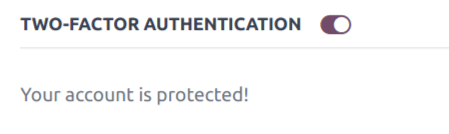
Click the Account Security tab, then slide the Two-Factor Authentication toggle to active.
This generates a Security Control pop-up window that requires password confirmation to continue. Enter the appropriate password, then click Confirm Password. Next, a Two-Factor Authentication Activation pop-up window appears, with a QR code.
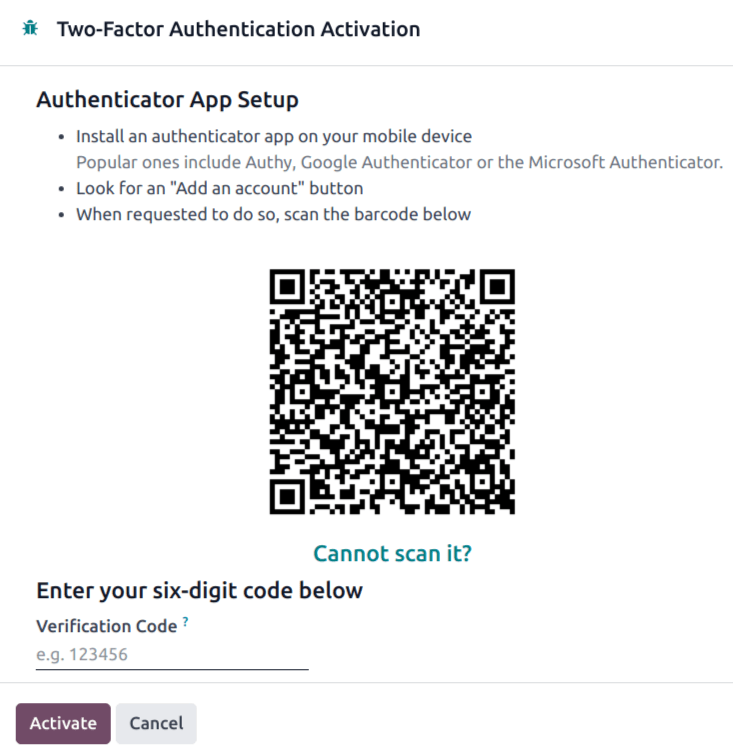
Using the desired authenticator application, scan the QR code when prompted.
If scanning the screen is not possible (e.g., the setup is being completed on the same device as the authenticator application), click the provided Cannot scan it? link, or copying the code to set up the authenticator manually, is an alternative.

Afterwards, the authenticator should display a verification code for the microclimates.com website.
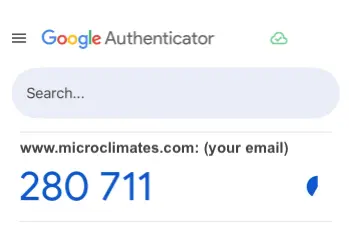
Enter the code into the Verification Code field, then click Activate.
Logging in
To confirm 2FA setup is complete, log out of Microclimates.
On the login page, input the username and password, then click Log in. On the Two-factor Authentication page, input the code provided by the chosen authenticator in the Authentication Code field, then click Log in.

⚠️ Important Security Warning
Do not delete the authenticator app from your phone while 2FA is active. If you lose access to your device or delete the app, you will be locked out of your account.